01 / CAPTURE
A card. A stack.
Consider it saved.
Scan or import your cards, review the details, and save. Capture now and sort through the stack when the event is over.
Meet your scannerThe handshake. The conversation. The business card.
Scan it with Carte. Remember who you met. Keep in touch.
Your business card scanner for iPhone. No Carte account needed.
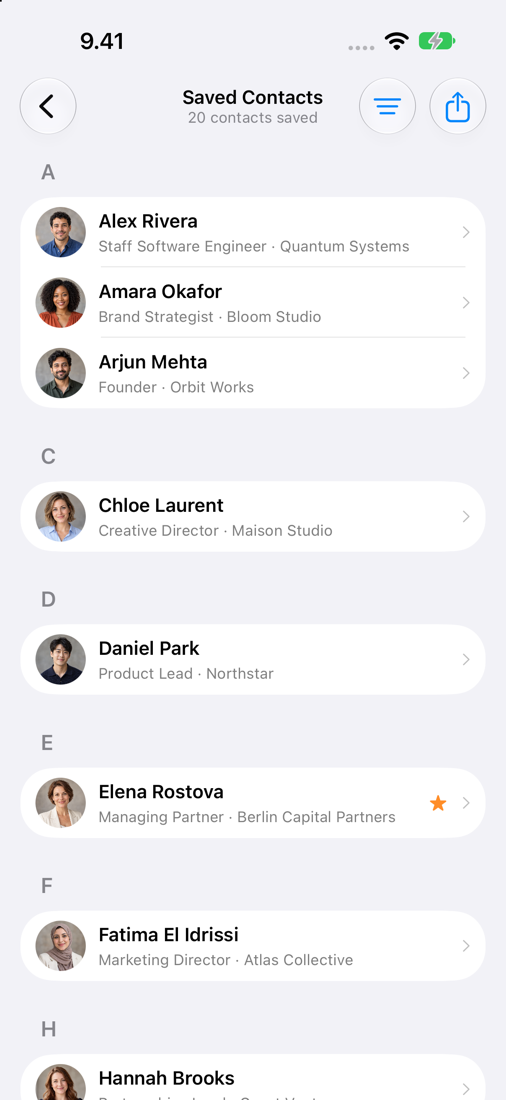
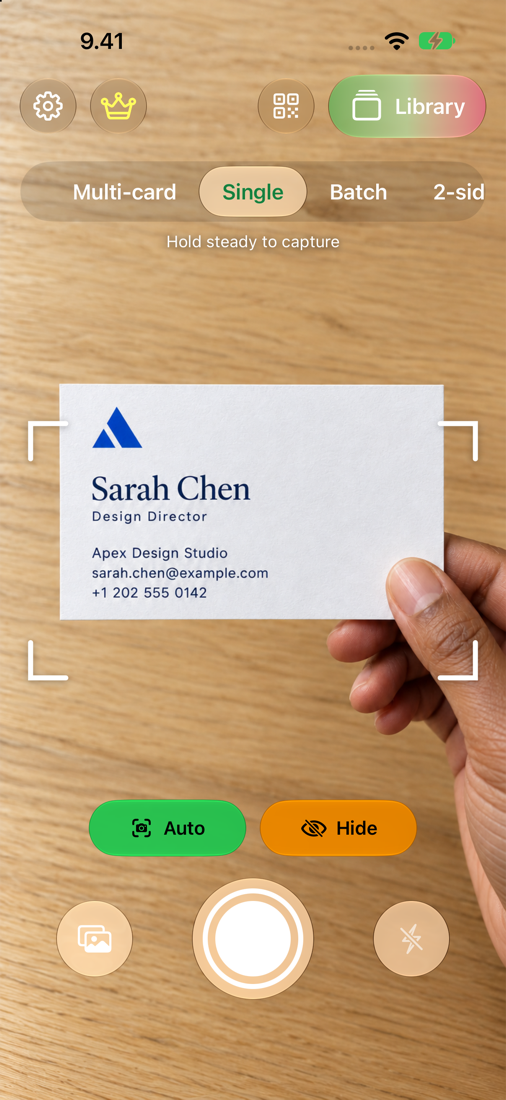
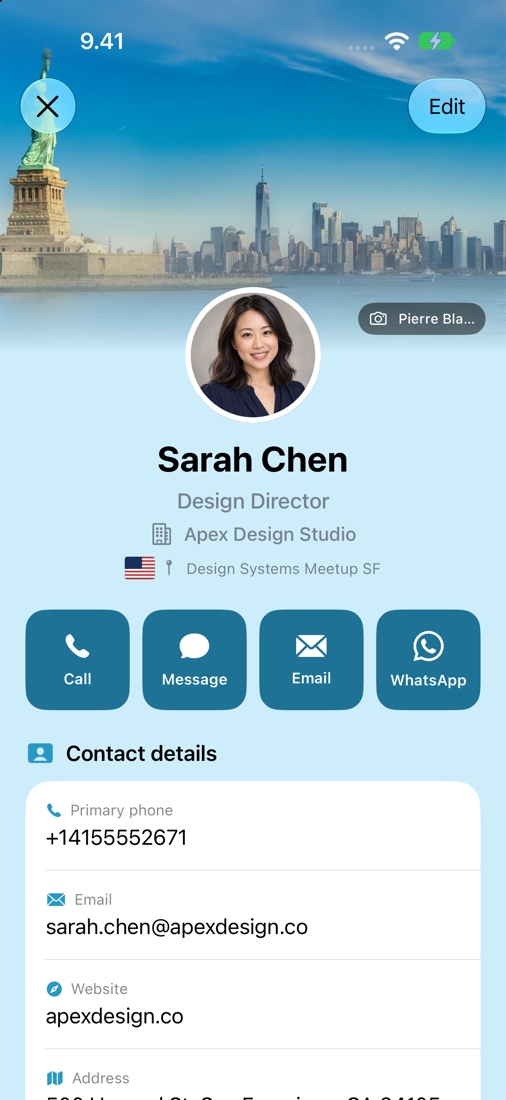

Scan a card. Remember the person. Keep in touch.
SAME LITTLE CARD. MORE POSSIBILITY.
At conferences, over coffee, after a good conversation. People still hand each other business cards.
Then the cards go into a pocket. A bag. A drawer. Carte turns that stack into people you can find again, with the details that make the next conversation easier.
Keep the value of paper. Add a little Carte.FROM FIRST HELLO TO NEXT TIME
All the little things that help a first meeting go further.
Scan or import your cards, review the details, and save. Capture now and sort through the stack when the event is over.
Meet your scannerThe place, the event, that thing you talked about. Keep the context beside their card, so the person stays familiar.
Look inside the librarySend that introduction. Share the link you promised. Set a follow-up reminder while the conversation is still fresh.
See follow-upsA FAMILIAR IDEA. A FRESH FEEL.
A brighter look. Thoughtful little details. Still Carte at heart.
YOUR PEOPLE, ALL TOGETHER
A handy home for the cards you collect. Search your saved contacts and pick up where you left off.
A LITTLE MORE YOU
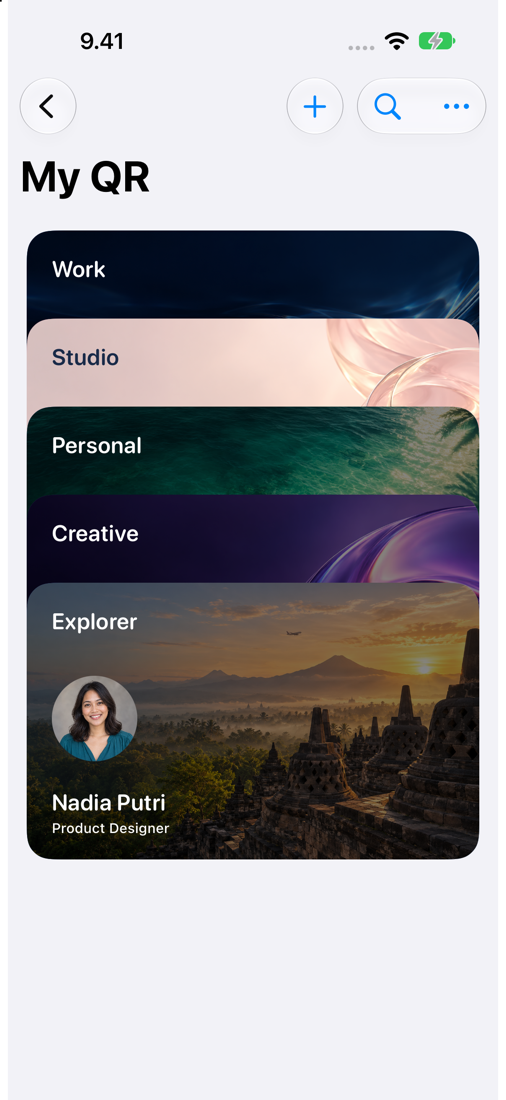
Your details, ready to share in one scan. Make a QR card that feels like you, with up to 10 cards for your different roles on Premium.
Keep original details. Convert names and other fields into Latin letters when useful.
Save to Apple Contacts. Export CSV or vCard files. Turn on optional iCloud sync.
Keep notes and follow-up reminders beside each contact, ready for your next hello.
YOUR NETWORK. YOUR CHOICES.
No Carte account needed. Clear choices about how your cards are read and where they’re kept.
A few things to knowOnline reading sends card images to a cloud service. Optional on-device reading works on supported iPhones with Apple Intelligence enabled.
Turn on optional iCloud sync to keep your saved cards in your Apple account. Export contacts whenever you need them elsewhere.
Usage sharing is optional in Settings. Review and edit the details on each card before you save or share them.
BEFORE YOUR NEXT HELLO
Scanning paper cards, saving contacts, and sharing your own. Here’s how Carte fits into your next conversation.
Get Carte for iPhoneA business card scanner turns a photo of a paper business card into contact details you can save and search. Carte is a business card scanner for iPhone that reads names, companies, job titles, phone numbers, and email addresses. Review the details before saving, and keep the original card photo for reference.
Open Carte and point your iPhone camera at a business card, or import a photo you have already taken. Carte reads the contact information so you can check it, correct anything that needs changing, and save the card. You can also save reviewed details to Apple Contacts.
Yes. Capture or import a stack of business cards, then review them one at a time. Keep, skip, or edit each card before saving. You can capture cards during a conference and sort through them later when you have more time.
Yes. Carte can save reviewed contact details to Apple Contacts with your permission. Your saved card also stays in Carte with its photo and meeting context. Export selected cards as CSV or vCard files when you want to use them elsewhere.
Use My QR in Carte to add your contact details and customize your digital business card. Show its QR code to someone you meet so they can scan your details. Carte Premium supports up to 10 QR cards for different roles, such as work, freelance projects, and personal introductions.
Add the meeting date, location, event, and a note about your conversation to the saved card in Carte. Search your library to find the person again, with the context that helps you pick up where you left off.
Yes. Set a follow-up reminder beside a contact in Carte. Keep the next step with their details, whether you promised an introduction, want to share a useful link, or plan to check in after an event.
You can queue card photos and let Carte read them when you are connected again. Optional on-device reading works offline on supported iPhones with Apple Intelligence enabled. Online reading sends card images to a cloud service and needs an internet connection.
Carte lets you keep the original card details and convert names and other fields into Latin letters when helpful. Review both versions and choose the details you want to save or share. Recognition can vary with the language, card layout, and image quality.
No Carte account is required. Download Carte from the App Store and get started on your iPhone. Optional iCloud sync uses your Apple account to keep your saved cards in iCloud.
HERE’S TO THE NEXT HELLO
Turn your next business card into a connection.
Download Carte for iPhone and keep the conversation going.
Made for the people you meet.