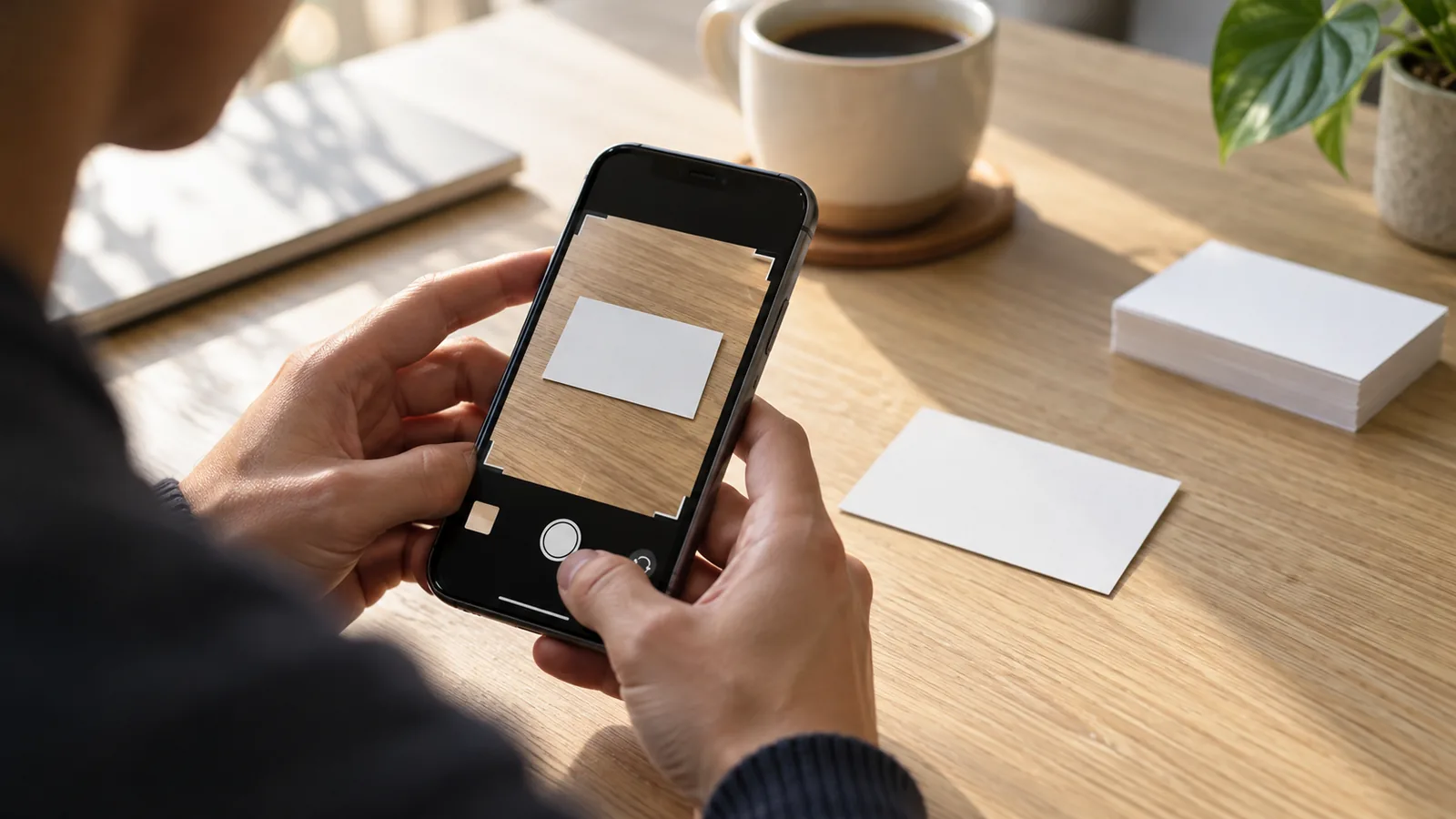
You are holding a card. Camera is open. The name is clear; the email is tiny. This guide shows what your iPhone can do with that card today, and when the built-in tools stop being enough.
Key takeaways
- Your iPhone can read text on a card with Live Text. From a detected phone number or email, you can often start a call or email, or use Add to Contacts — then fill in the rest of the record yourself (Apple Support).
- Notes and Files can scan a card as a document (typically a PDF or image). That preserves a picture of the card; it does not finish an address-book contact (Apple Support).
- For one or two cards, Live Text plus Contacts is often enough. After a conference stack, or when you need meeting context and a follow-up reminder, a dedicated business card scanner for iPhone is the clearer path.
- Carte can scan a card or a stack, let you review before saving, and save to Apple Contacts or export CSV / vCard.
What your iPhone can do today (Apple’s tools)
Apple does not ship a feature labeled “business card scanner.” It ships text and document tools that people reuse on cards. Knowing the boundary saves time.
Live Text in Camera and Photos
Camera. Open Camera, frame the card so the text is readable, wait for the yellow frame around detected text, then tap the Live Text control. You can select text to copy, look up, translate, search the web, or share. Depending on what is on the card, quick actions can include starting a call or email (iPhone User Guide: Use Live Text with your iPhone camera).
Photos / images. Open a photo of a card, tap Live Text, then tap a phone number or email. Apple notes that, depending on the image, you might see Add to Contacts (Copy and translate text from photos). Live Text needs an iPhone XS, iPhone XR, or later with iOS 15 or later; it is not available in all regions or languages.
That path is real and useful. It is also field-level: you act on detected text, not on a finished contact with name, title, company, phones, and emails already mapped.
Add a phone number or email to Contacts
When Live Text offers Add to Contacts on a number or email, use it. Then open Contacts, fill the remaining fields (name, company, title, second phone), and save (Add and use contact information on iPhone). For a single lunch meeting, that is often the least friction.
Notes or Files document scan (keeps a PDF/image, not a finished contact)
In Notes, create or open a note → Attachment → Scan Documents → frame the card → Keep Scan → Done. In Files, use Scan Documents and save to a folder. Apple describes these scans as documents (in Notes, commonly as a PDF in the note), not as Contacts records (How to scan documents on your iPhone or iPad; Scan text and documents).
Keep this path when you want an archive of the card image. Do not expect it to populate your address book by itself.
Visual Look Up is not a card scanner
Visual Look Up helps identify things in photos (art, landmarks, and similar). It is not a workflow for turning a business card into a contact (Look up what's in a photo). If someone told you to “Look Up” a card into Contacts, they mixed up two features.
Step-by-step: scan with Live Text into Contacts
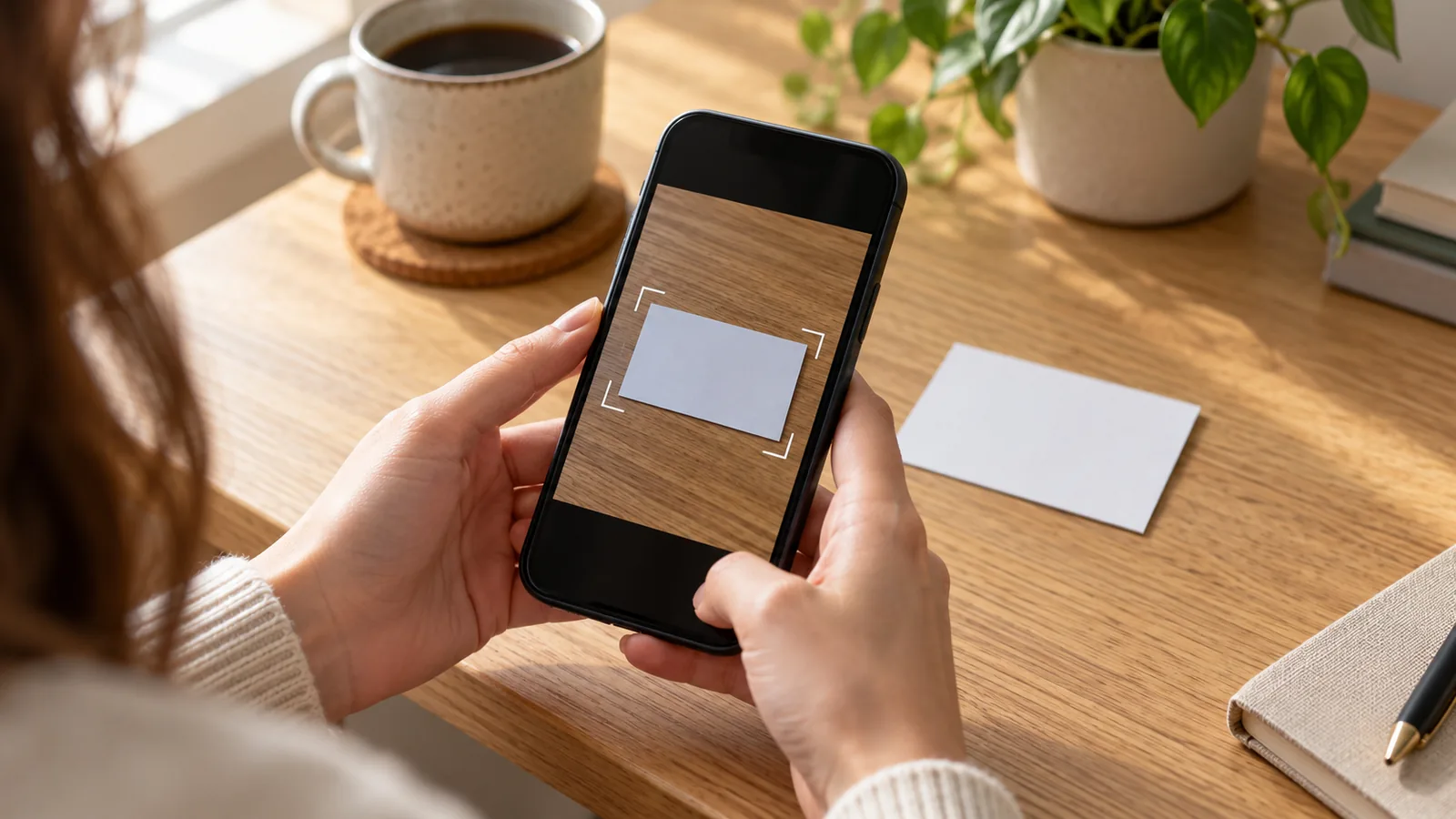
Use this when you have one card (or a photo of one) and a quiet minute.
- Capture or open the card. Take a sharp photo in Camera or Photos, or point Camera at the card for Live Text without saving a photo first (Camera Live Text guide).
- Invoke Live Text. Tap the Live Text control when text is detected.
- Act on a phone or email. Tap the number or address. If Add to Contacts appears, use it (Apple Support HT120004).
- Finish the contact. In Contacts, add name, company, job title, and any other numbers. Tap Done (Contacts guide).
- Optional archive. If you still want the card image, scan it into Notes or Files as a document (document scan HT).
Honest limits. Live Text quality depends on lighting, font, language, and layout. Multi-column cards and dense logos can leave you selecting text piece by piece. There is no Apple-documented “scan entire card → complete Contacts contact” button.
When Live Text gets old (the volume breakpoint)
Flash forward to the end of a conference day: ten cards in a pocket, two already bent, one in a language you cannot type quickly. Live Text still works (one photo, one field action, one manual finish), but the cost stacks. Annoying, not dramatic. Easy to leave the pile for “tomorrow,” then lose the thread of who promised what.
If you want a fuller side-by-side of Apple’s tools versus a dedicated app, see Live Text vs a business card scanner on iPhone. Brought a pocket of cards home from an event? The after-conference business card checklist covers what to do that night, within two days, and by the end of the week.
The breakpoint is usually not “OCR exists.” It is:
- Volume: many cards in one afternoon
- Context: where you met, the event name, the note you meant to write
- Follow-up: a reminder while the conversation is still fresh
- Export: you need a CSV or vCard for another tool, not only one Contacts entry
If none of that applies, stay with Apple’s tools. If it does, a dedicated scanner is a reasonable next step, not because built-ins failed as text readers, but because the job grew past “read this line.”
Using a dedicated business card scanner on iPhone
A business card scanner app points the camera at a card (or imports photos), reads contact fields, lets you review, then saves to your library and often to Apple Contacts. Features vary by app. For a broader shortlist, see CamCard alternatives for iPhone. Below is the job-shaped checklist; where we mention Carte, claims match the live App Store listing for version 2.1 and carte.web.id as of 2026-11-08.
Capture one card or a stack; review before you save
Look for: camera capture, photo import, field review (name, phones, email, title, company), and edit before save. Carte can scan one card or a stack, then review the stack one card at a time: correct a spelling, keep multiple phone numbers, swipe to keep or skip, undo, and keep the card photo for reference. Capture during an event and work through the pile later.
Queue when the venue has no signal
Many venues have weak Wi‑Fi. Carte can queue offline scans and read them when you have signal again. Cloud AI (Google Gemini) is the default reading path. Optional on-device reading with Apple Intelligence is available on supported iPhones; the on-device setting only appears when that path is available. If you choose on-device and it is not available, scans stay queued with an explanation. Carte does not quietly fall back to cloud. Review details before you save or share.
Keep meeting notes and set a follow-up reminder

Apple Contacts stores people; it does not automatically remember the booth number or the intro you promised. Carte’s public description covers meeting date, location, event, conversation notes, search in your library, and follow-up reminders beside the contact. That is the “person behind the card” part of the title: plain memory work so the next hello is easier.
Names across languages
International events often mean names in non-Latin scripts. In Carte you can keep the original card details and convert names and other fields into Latin letters. Review both versions and choose the details you want to save or share.
Save to Apple Contacts or export CSV / vCard
Prefer apps that save reviewed contacts to Apple Contacts with permission, and that can export CSV or vCard (.vcf) when you need the data elsewhere. Carte supports those exports and optional iCloud sync; no Carte account is required to get started.
About Carte
Carte is free to download with In‑App Purchases. Your first five scans are free. Premium unlocks unlimited scans and up to 10 QR cards, at $3.99 per month, $29.99 per year, or $39.99 one-time (US App Store as of 2026-11-08). Default reading uses cloud AI (Google Gemini) and needs a connection. Optional on-device reading with Apple Intelligence works offline only on supported iPhones that have it turned on; the setting appears only when that path is available. Requires iOS 17.0 or later. Confirm prices and What’s New on the live listing.
Built-in tools vs a scanner app (quick table)
| Job | Live Text + Contacts | Notes / Files scan | Dedicated scanner (e.g. Carte 2.1) |
|---|---|---|---|
| Read text on one card | Yes | Image/PDF archive | Yes |
| One-pass full contact fields | No (field actions + manual finish) | No | Designed for field mapping + review |
| Stack after an event | Tedious | Archive only | Stack capture + review flow |
| Offline venue | On-device Live Text | Local scan | Queue photos; cloud AI (Google Gemini) when online; optional on-device Apple Intelligence when available |
| Meeting context + reminder | Manual notes elsewhere | In the note, not Contacts | Notes + follow-up reminder beside the card |
| Export CSV / vCard | Share contact / manual | No contact export | CSV and vCard export (Carte listing) |
FAQ
What if Add to Contacts doesn't appear in Live Text?
Apple notes that Add to Contacts appears depending on the photo, image, or website — it is not guaranteed on every card (Apple Support). If it is missing, open the photo in Photos, tap Live Text, select the phone number, email, or other text, tap Copy, then paste into a new contact in Contacts and finish the fields (Apple Support; Add and use contact information on iPhone). A sharper retake in brighter light often helps Live Text pick up the lines more cleanly before you try again.
How do I add a business card to Contacts from a photo?
Open the photo → Live Text → tap a phone number or email → use Add to Contacts when offered → complete the remaining fields in Contacts (Apple Support).
Can I scan multiple business cards after an event?
With built-ins, yes, but one image and field pass at a time. A dedicated scanner that supports a stack, review, and later sorting fits high-volume days better. Carte’s site FAQ describes capture-or-import of a stack, then keep / skip / edit before saving.
Do I need internet to scan cards?
Apple says Live Text "uses on-device intelligence to recognize text in photos" (Apple Support). With Carte, you can capture cards without a connection and they queue until you're back online. Reading uses cloud AI (Google Gemini) by default. On supported iPhones with Apple Intelligence enabled, you can switch to on-device reading; that setting appears only when it's available, and Carte won't quietly switch you back to cloud (carte.web.id; Apple Support).
Will a scanner replace Apple Contacts?
It should not have to. Prefer tools that save into Apple Contacts and optionally export CSV / vCard so you are not locked into one inbox.
Next step
If the volume breakpoint sounds familiar, try Carte on the App Store, or start from the Carte home page. For one card and a quiet minute, Live Text plus Contacts is still a fine place to begin.
Sources
- Apple Support: About Live Text and Visual Look Up (accessed 2026-11-02)
- Apple Support: Copy and translate text from photos on your iPhone or iPad (accessed 2026-11-02)
- Apple: Use Live Text with your iPhone camera (accessed 2026-11-02)
- Apple Support: How to scan documents on your iPhone or iPad (accessed 2026-11-02)
- Apple: Scan text and documents on iPhone (accessed 2026-11-02)
- Apple Support: Look up what's in a photo with your iPhone or iPad (accessed 2026-11-02)
- Apple: Add and use contact information on iPhone (accessed 2026-11-02)
- Carte home: carte.web.id (accessed 2026-11-08)
- Business Card Scanner - Carte on the App Store: description, IAP, version 2.1 (accessed 2026-11-08)
- Apple Support: How to get Apple Intelligence (accessed 2026-11-08)